How to Ask Questions with AI Agent
ZeitMind's AI Agent lets you explore your data by asking questions in natural language—no SQL or technical knowledge required.
What Can You Do with the AI Agent?
Ask questions directly instead of writing queries or building dashboards:
- "Which products had the highest sales last quarter?"
- "Show me price trends by region"
- "What are the most common customer complaints?"
The AI understands your data structure, writes queries, and explains the results.
Opening the AI Agent
After opening a project, you'll see two tabs in the sidebar:
- Analysis - Ask questions with AI (this is where we'll work)
- Data Prep - View and transform raw data
Make sure you're on the Analysis tab.
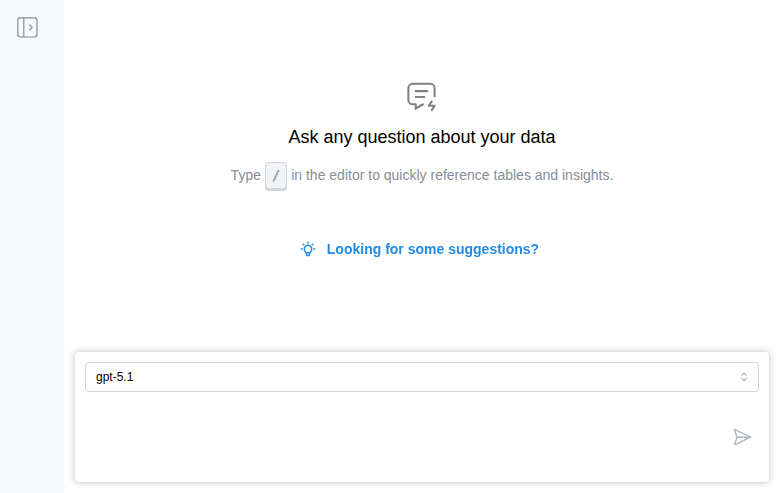
You'll see:
- A chat-like interface
- A text box at the bottom to type questions
- A model selector (e.g., "gpt-5.1")
Getting Question Suggestions
Not sure what to ask? Click "Looking for some suggestions?" to generate ideas based on your data.
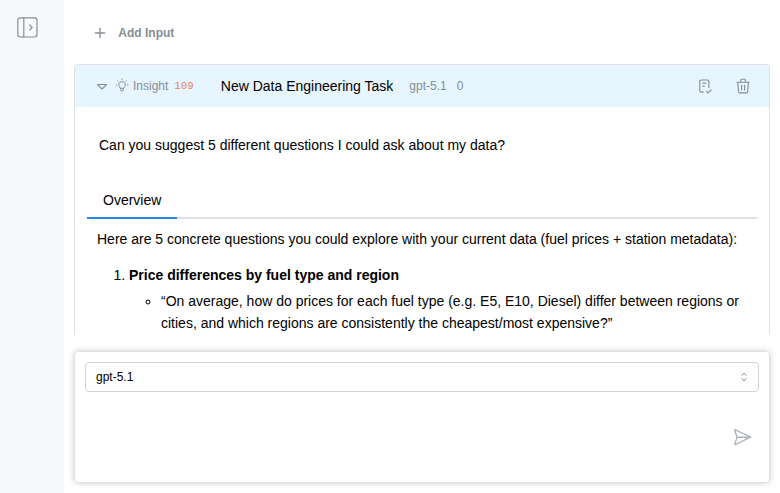
The AI analyzes your tables and suggests relevant questions like:
- Price differences by fuel type and region
- Cheapest stations per area over time
- Impact of station brand on price levels
- Daily price patterns
- Volatility and stability of prices
💡 Tip: Suggestions are tailored to your specific data and show what kinds of analysis are possible.
Asking Your First Question
- Click in the text box at the bottom
- Type your question in natural language
- Press Enter or click the send button
Example:
Show me the average prices by hour of day for Diesel. Which hours are cheapest?
The AI will:
- Check which tables are relevant
- Analyze the data structure
- Run the necessary queries
- Present results with explanations
Understanding the Response
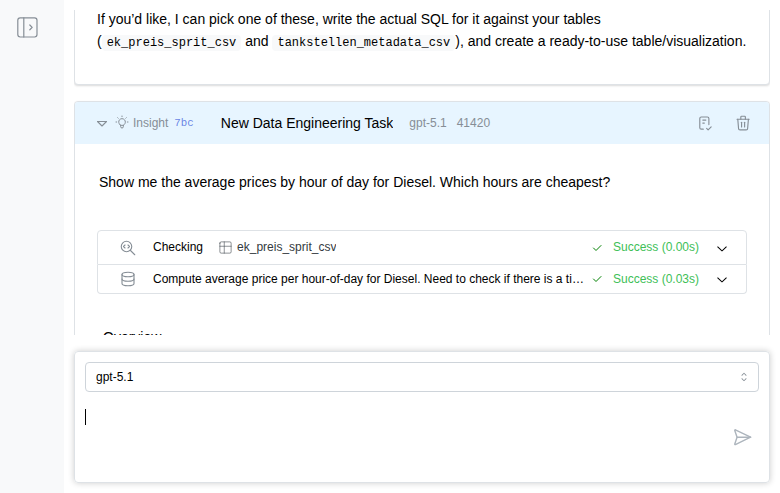
Processing Steps
See what the AI did at the top:
- ✓ Checking ek_preis_sprit_csv (Success)
- ✓ Compute average price per hour-of-day (Success)
Each step shows what was checked or computed, success/failure status, and timing.
Data Tables
Results appear in sortable, interactive tables with column sorting, search, row counts, and download buttons.
Clear Explanations
When something isn't possible, the AI explains why and suggests alternatives:
"From the data we currently have, I can't calculate prices by hour of day. The table contains year and month, but no timestamp. If you'd like, I can instead show:
- Average Diesel price by month and year
- Average Diesel price by location"
The AI understands your data and helps you ask better questions.
Pro Tips
Start Fresh Threads
When switching topics, click the plus (+) button at the top of an analysis to open a new thread. This removes irrelevant context and helps the AI focus on your new question without confusion from previous conversations.
Reference Tables Directly
Type / in the editor to quickly reference specific tables:
What's the total revenue from /sales_2024?
Ask Follow-Up Questions
Keep the conversation going:
- "Now show me just January"
- "Break this down by product category"
- "Create a chart of the top 10"
Request Visualizations
Ask for specific outputs:
- "Create a bar chart showing..."
- "Make a pivot table with..."
- "Generate a trend line for..."
Check Data Quality
Use the AI to validate your data:
- "Are there any missing values in the price column?"
- "Show me duplicate customer IDs"
- "Which tables are related to orders?"
Why This Is Powerful
- Context-Aware: Knows your table names, column types, and relationships
- Intelligent: Explains limitations and suggests alternatives
- Transparent: Shows processing steps, not a black box
- Conversational: No SQL, pivot tables, or BI tool syntax needed
Troubleshooting
"The AI didn't understand my question"
→ Try rephrasing with specific column or table names (use / to reference tables)
"Results seem wrong"
→ Check the processing steps to verify the AI used the correct tables and columns
"Query taking too long"
→ Large datasets may need optimization—try filtering by date range or specific categories first
Next Steps
- Explore: Try suggested questions or create your own
- Build Pipelines: Convert insights into automated reports (coming soon)
- Create Apps: Turn queries into interactive dashboards (coming soon)